
Wine
Wine is a compatibility layer to run Windows applications on Unix-like operating systems, like Linux, MacOS, and BSD. It works by translating Windows API calls to POSIX calls on-the-fly, making it significantly faster than emulators/virtual machines.
Installation
pacman -Syu wine winetricks samba
# P.S.: you might need to enable the winbind.service manuallyWine from the default repositories are way too outdated.
Follow this guide to install the latest versions of Wine:
https://gitlab.winehq.org/wine/wine/-/wikis/Debian-Ubuntuenvironment.systemPackages = with pkgs; [
wineWowPackages.unstable
winetricks
];
services.samba.winbindd.enable = true;
services.samba.nsswins = true;Environment variables
Wine uses environment variables all over the place, so this section is dedicated to explain the basics of what it is.
Environment variables are basically values that can be set by the user and read by the applications running in the same environment.
One of the most common environment variables is HOME, which points to the user's home directory and is usually set during login. You can see its value with the echo command.
echo $HOMEThat means if an application wants to save files to your home directory, they just need to use the HOME variable.
It's also very easy to override environment variables for a certain a program:
MY_VARIABLE=/some/other/place programOnly that particular program can see the MY_VARIABLE value set by you. If you want to set an environment variable available to all the subsequent processes in a shell session, you need to export it:
export MY_VARIABLE=/some/other/place
program1
program2
If you open a new shell session, the values will not be set, since they are only valid for that particular environment. If you need to set variables globaly, you can set them in /etc/environment or /etc/profile, but it's generally not recommended and not necessary in most cases.
You can also manually unset a value with the unset command
unset MY_VARIABLEHow to use Wine
All you need to do is run
wine /path/to/application.exeThat's it... well not quite.
If you get lucky and the application is very simple, then the command above should be enough. However, some applications require some quirks to work, like fonts, extra libraries, other Windows version, etc.
Those quirks are configured and installed in a wine prefix. The prefix is simply a folder where wine stores settings, Windows files, and a "fake drive" that the application will see as the C:/ drive.
That means if you try installing an application with wine game-installer.exe and it installs the application under some path like C:/some/path/my-game.exe, you'll be able to find it inside the wine prefix folder.
The default wine prefix is located at your home folder in $HOME/.wine, but it can be overriden by the WINEPREFIX environment variable.
WINEPREFIX=/path/to/prefix wine "C:/some/path/my-game.exe"You can also refer to executables outside of the fake "C" drive.
WINEPREFIX=~/dna-prefix wine ~/Downloads/duet-night-abyss-installer.exeNow... if the application didn't work with pure wine, we can use winetricks to install the libraries/quirks that it needs.
TIP
It's bad practice to use the default wine prefix for multiple applications because it's very easy for them to break. There's no "undo" button to fix a wine prefix, so if it breaks you'd have to reinstall multiple applications.
It's generally recommended to create a separate wine prefix for each application. For advanced uses, it's even better if you can separate the program's files (folder with the application's executables and assets) from the prefix.
INFO
There's also a Z:/ drive that leads to your Linux's root, as well as some symlinks from C:/ to your home.
For example, it links C:/users/your-user-name/Downloads to /home/your-user-name/Downloads.
You can remove them with the sandbox winetrick.
Winetricks
Winetricks contains a collection of quirks/tricks that can be applied to a wine prefix and it also uses the same WINEPREFIX environment variable.
export WINEPREFIX=~/my-game-prefix

# If the application uses Direct3D 8, 9, 10, or 11
winetricks dxvk

# If it uses Direct3D 12
winetricks vkd3d

# If it needs chinese/korean/japanese fonts
winetricks cjkfonts

# You can see a full list of all tricks
winetricks list-all
In order to know which tricks to install or known bugs for a particular application, you can check WineHQ
INFO
Wine has a builtin Direct3D implementation, but dxvk performs better in general.
Winecfg
Sometimes an application requires an older version of Windows to run, like Windows 98. You can set that using the winecfg command to open a GUI window.
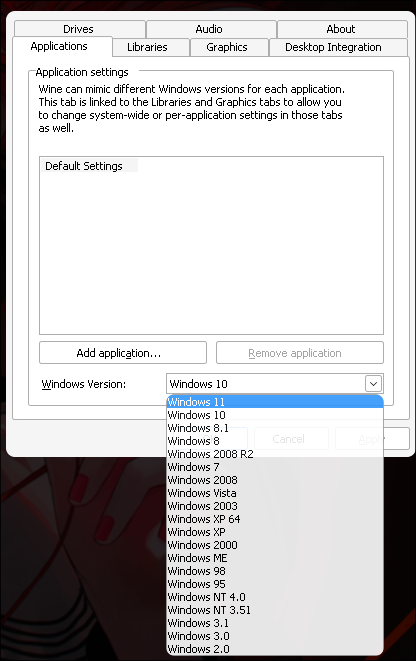
If you prefer doing it purely from the terminal, you can use the /v flag.
winecfg /v win98

# List of all supported versions:
winecfg --help
You can also use it to override DLLs (dynamic linked libraries). For example, BepInEx needs to load their custom winhttp.dll library, so you can set it through winecfg.
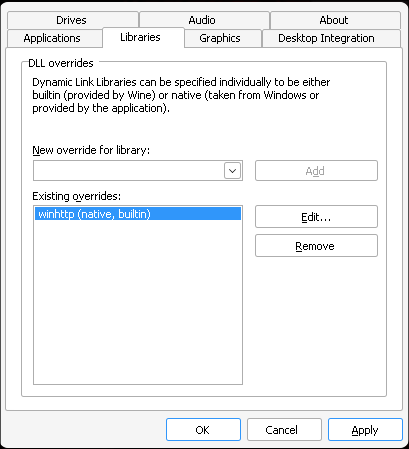
There's no flag to set it from the terminal, but you can use the WINEDLLOVERRIDES environment variable instead.
That's useful if it's a Steam game, since you can set it in the launch options:
WINEDLLOVERRIDES="winhttp.dll=n,b" %command%Wine explorer
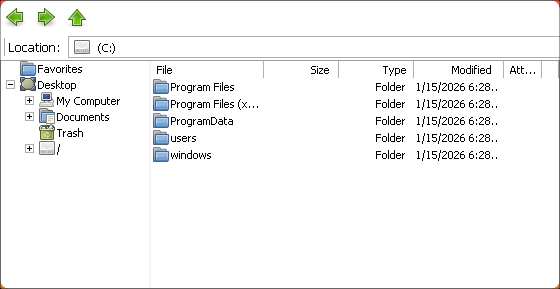
You can use wine explorer to see the files inside your prefix.
Wineboot
If you ever need to create a new wine prefix without having to run an executable, you can use the following command
WINEPREFIX=/path/to/new/prefix winebootIf a wine prefix stops working after an update, you could try using wineboot -u to update the prefix.
WINEPREFIX=/path/to/broken/prefix wineboot -uNixOS quirk
WINEPREFIXES don't auto update on NixOS, see:
Japanese games
Some japanese games (very few) might require you to set the locale to ja_JP
LANG=ja_JP.UTF-8 wine /path/to/your/gameBut you need to have the locale in your system.
To check if it is, run locale -a
$ locale -a
C
C.utf8
en_US.utf8
ja_JP.utf8 # You need to have this one!
POSIX
If you don't have it, you need to generate.
Edit /etc/locale.gen and uncomment ja_JP.UTF-8 UTF-8:
#it_IT@euro ISO-8859-15
#iu_CA UTF-8
#ja_JP.EUC-JP EUC-JP
ja_JP.UTF-8 UTF-8
#ka_GE.UTF-8 UTF-8
#ka_GE GEORGIAN-PS
#kab_DZ UTF-8
Then run locale-gen to generate the locale and check if it's listed under locale -a
NixOS configuration
You just need to add it to your i18n.supportedLocales and rebuild.
i18n.supportedLocales = [
    "ja_JP.UTF-8/UTF-8"
];